MYLAPS · 2024–2025
Pairing by touch
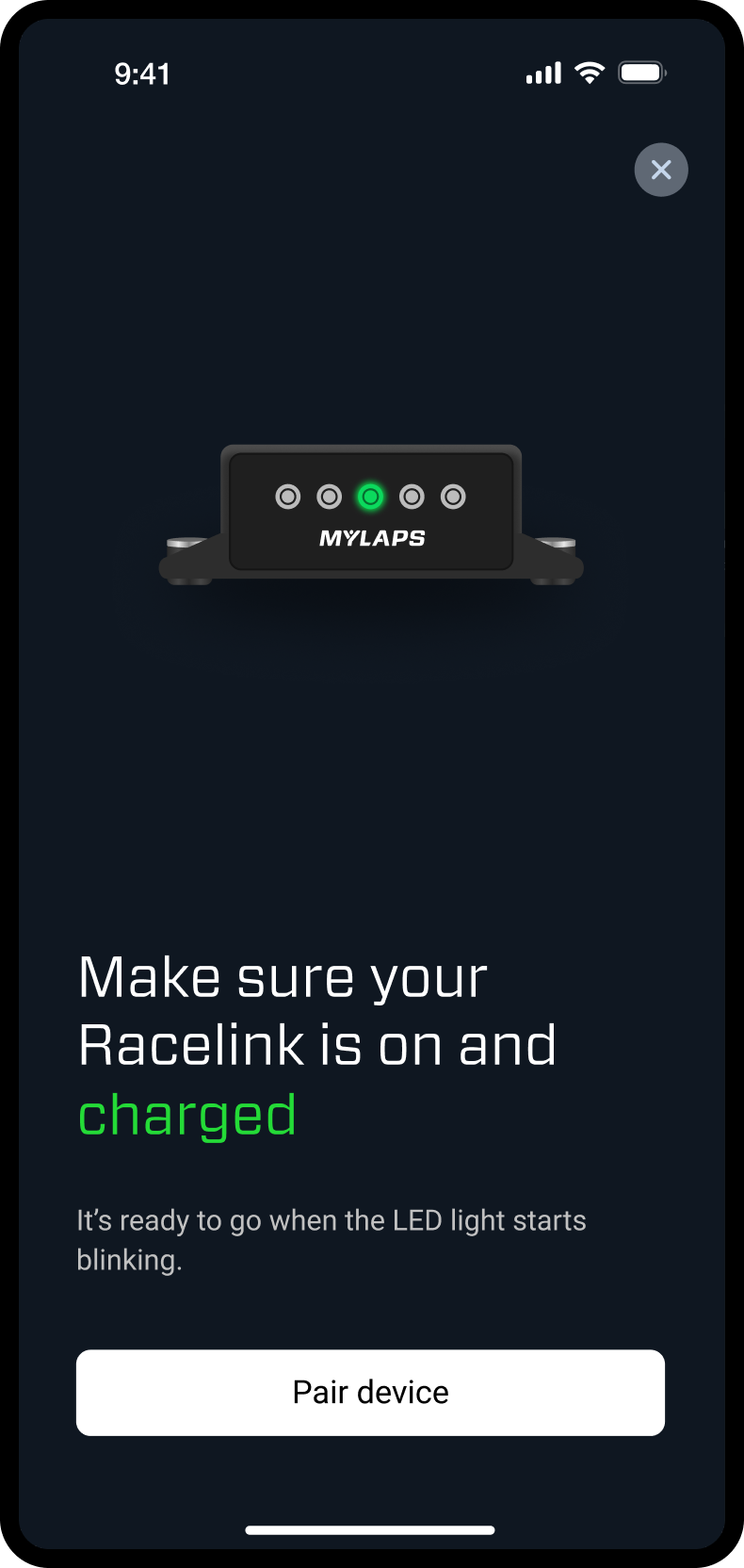
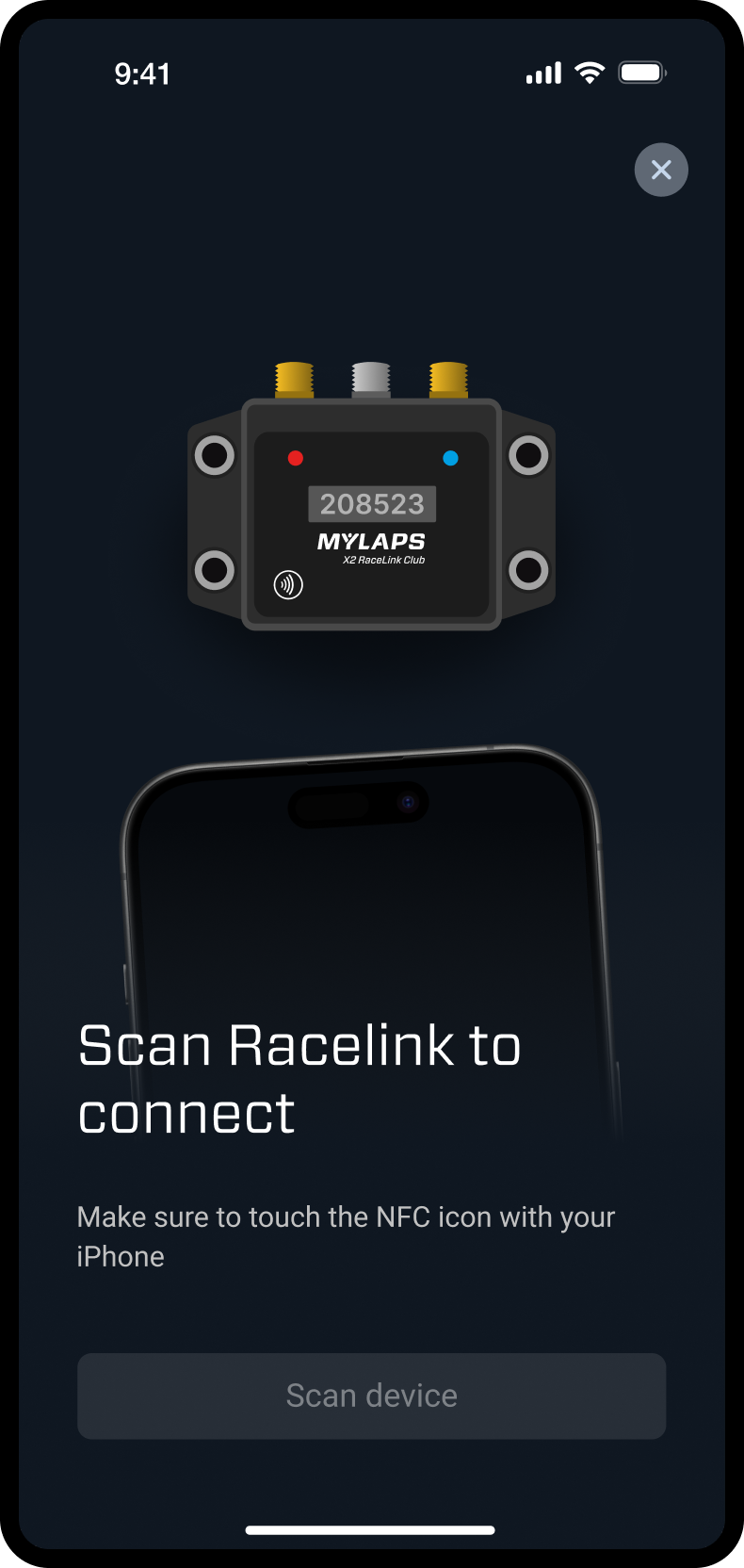
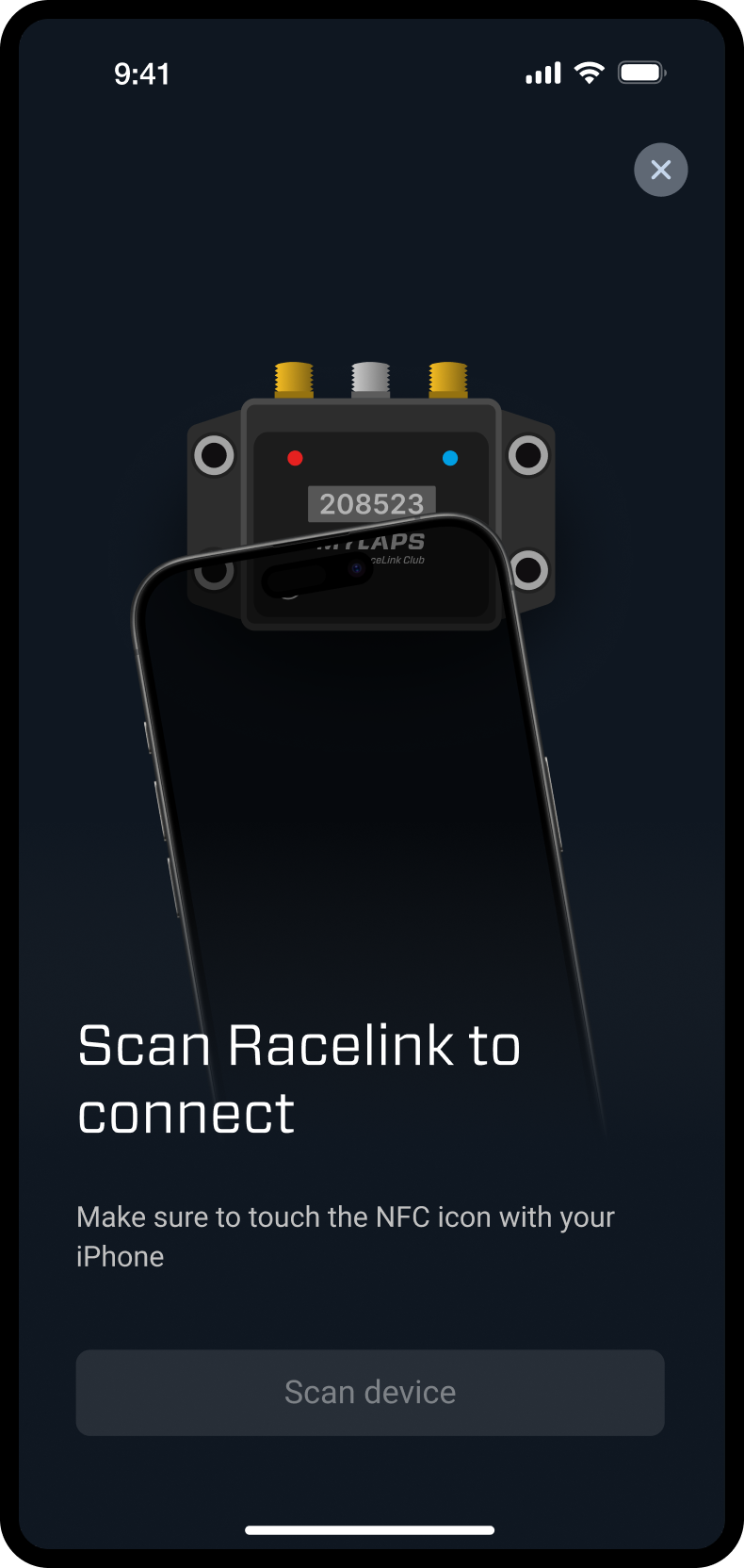
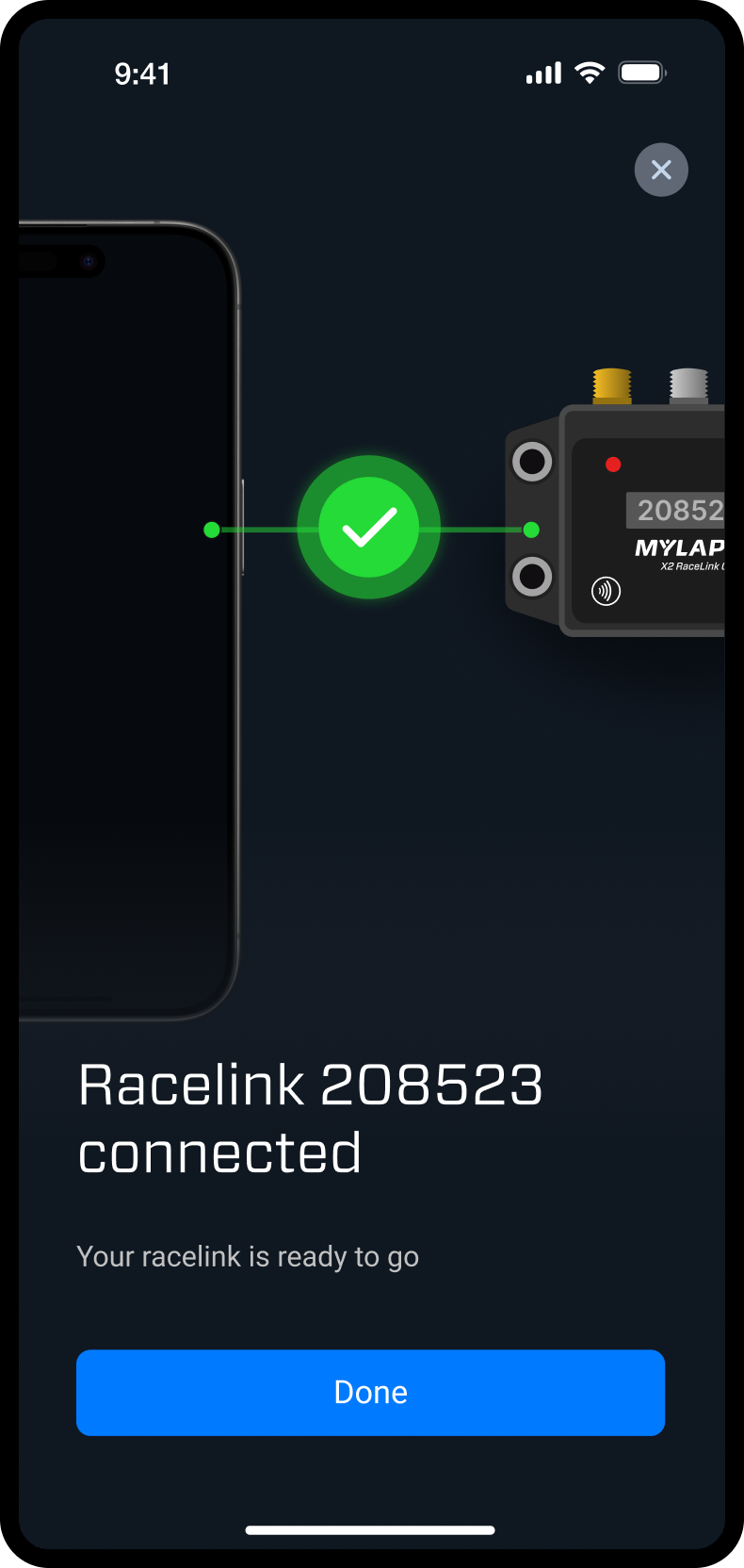
I designed how racers connect a buttonless X2 RaceLink to the Speedhive app. A short animation shows where to hold the phone, and the app confirms which RaceLink is connected.
Freelance UX/UI designer · September 2024–February 2025
From a dock to a tap
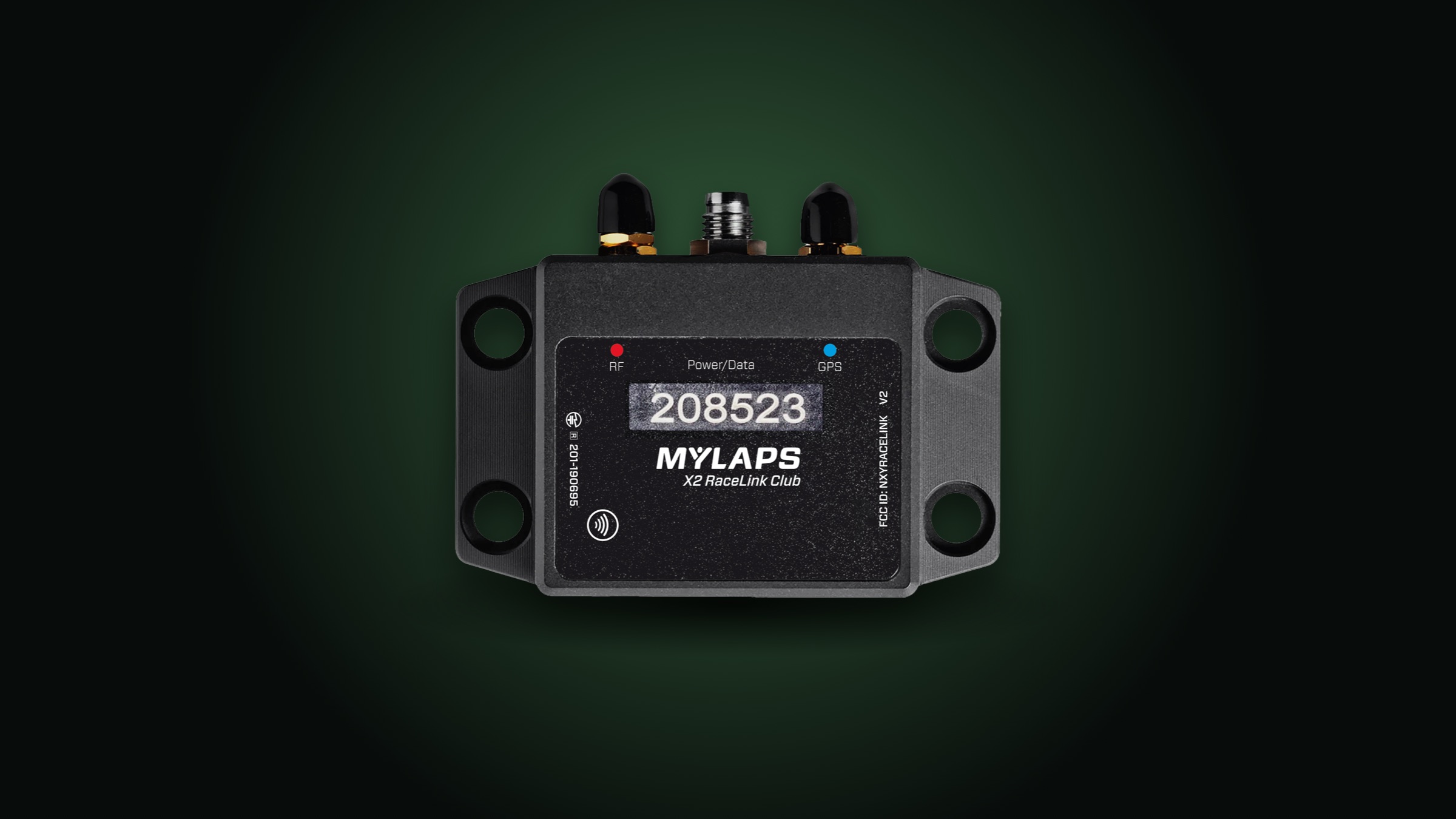
In the earlier setup the RaceLink had to sit in a dock to turn on Bluetooth. MYLAPS added NFC so the phone can start that step; Bluetooth then handles the connection. There is no button for a pairing mode, and early scans were hit and miss, especially on Android. So where and how you hold the phone became part of the design. Besides the guidance in the app, I raised possible improvements to the NFC module and antenna.
Show where the phone goes
I made three prototype versions, simplifying text and images each time. I drew the product illustrations and worked on a short Lottie animation that shows the phone moving to the device. The two middle screens are that motion within one scan step.
Speedhive app · iOS and Android · iPhone exports shown
Ready for the session?
Right after pairing, the device page answers one question: is this RaceLink ready for the session? The old page led with a renewal button. I rebuilt it around status: GPS signal, battery, subscription and firmware, on one screen without scrolling, as the requirements asked. A weak GPS signal is the one thing that ruins a session, so tapping it opens a sheet that says what is wrong and what to do, from moving to open sky to waiting for a cold start.
Defining the status lights
A smaller job: deciding what the RaceLink’s five LEDs say. I compared a pattern where all five lights change with one where three each own a check: GPS, RF and licence, green when ready, orange when not. The second reads at a glance, so that became the colour code; the manual explains which light is which. Pick a status to see it.
All systems readyGPS fix, RF link and a valid licence. Good to go.LEDs: GPS green, RF green, licence green.
Also: a homepage for two kinds of sport
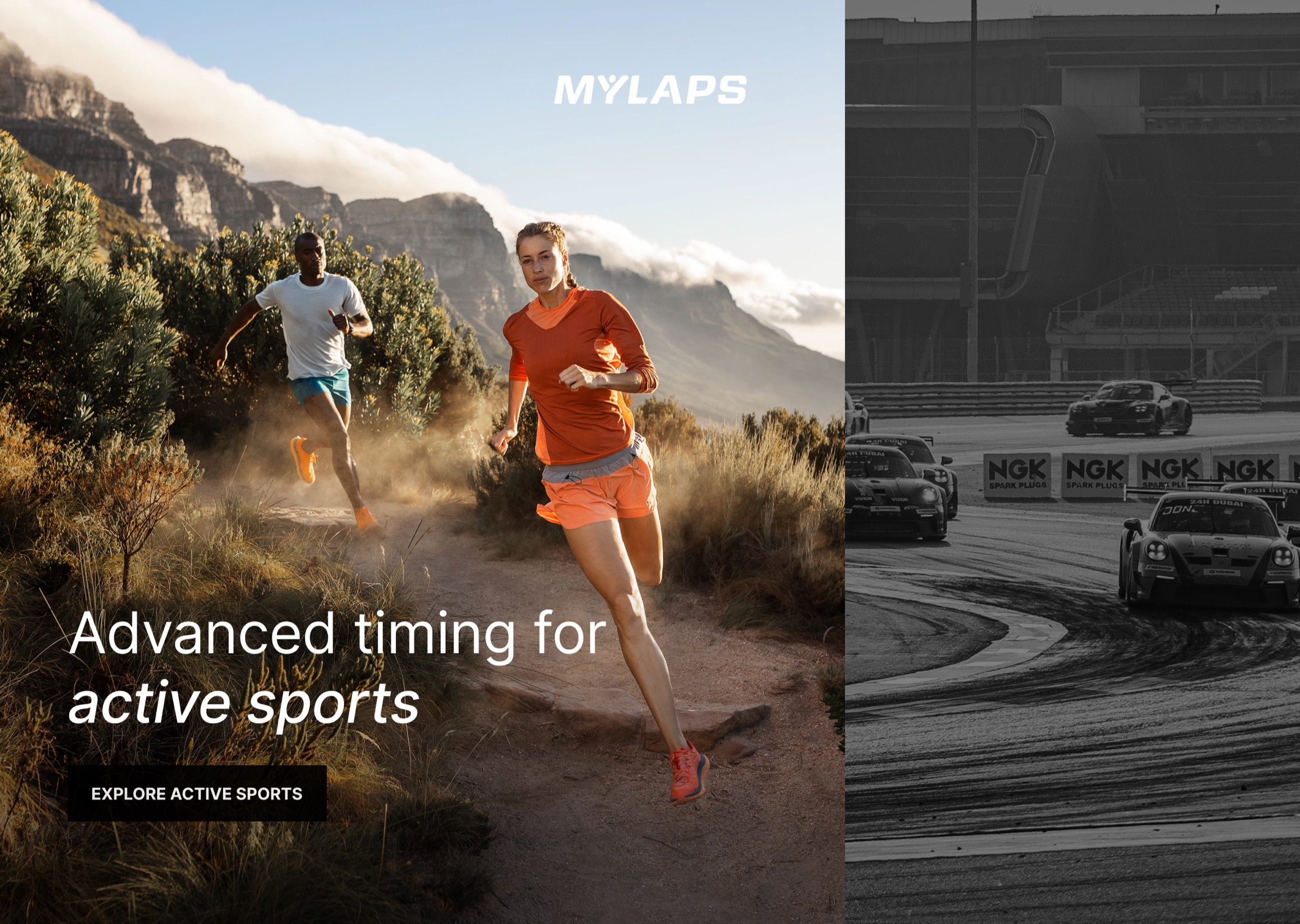
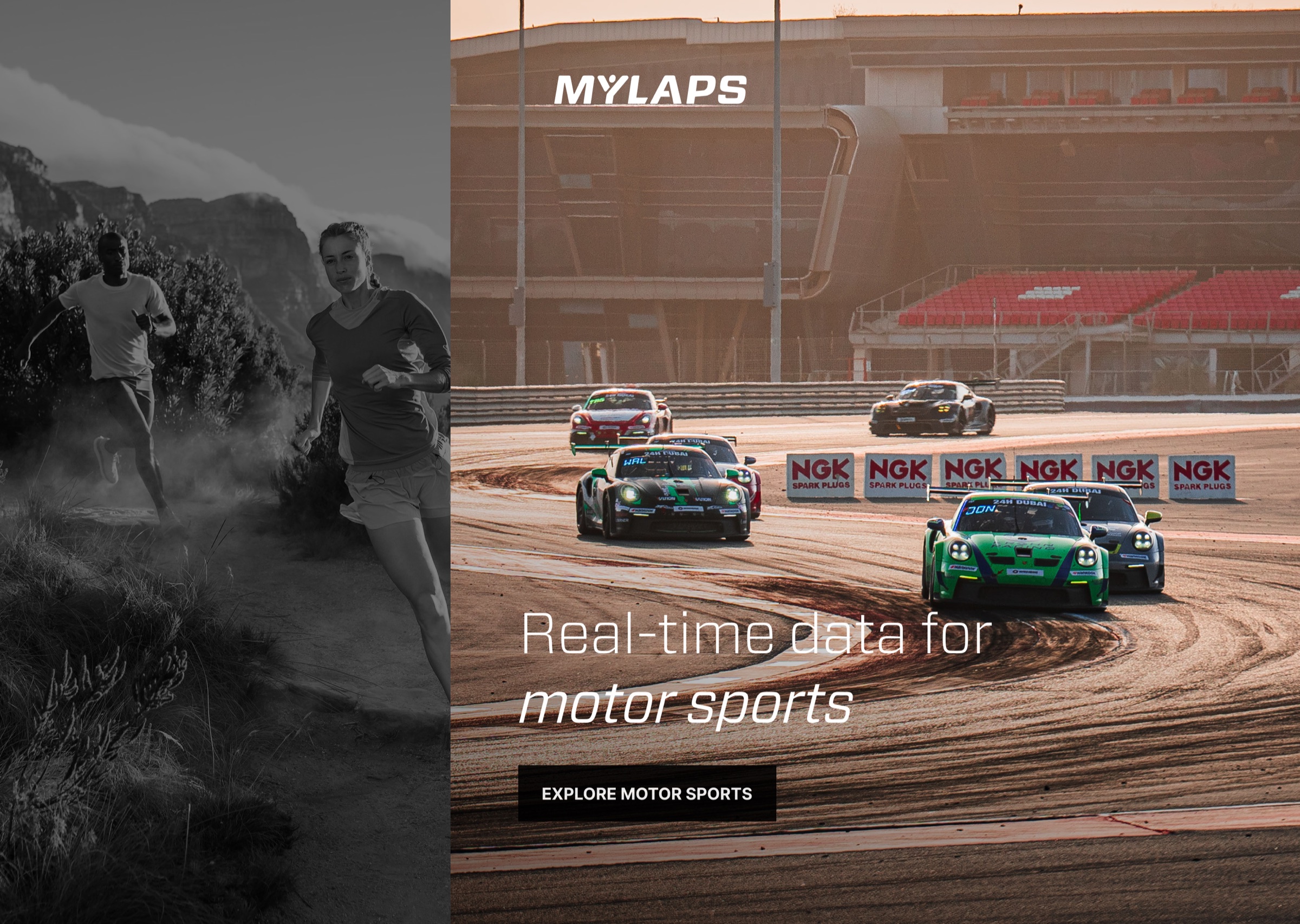
During the same engagement MYLAPS was redesigning its website with another designer. I reviewed the concepts in Figma and asked for real product photography and data, clear hover and click states, and more visual character than photos with a label. Then I drew my own suggestion for the homepage: one hero split between active sports and motor sports. Hovering a side opens it in colour and turns the other grey, so both audiences find their world in one move.
The MYLAPS website